Opening Vector…

OBSCURA Vector
Vector illustration and design.
This browser’s Pro key was not accepted: the subscription behind it has ended. Renew or subscribe below.
Vector onlyUS$2 a month, 7 days free EverythingUS$5 a month, 7 days free Sign in
US$2 a month or US$19 a year for Vector, or US$5 a month or US$48 a year for everything. 7 days free. Stripe takes a card, and nothing is charged if you cancel before they end.
- The pen, scissors, knife and eraser
- Several fills and strokes, and patterns
- Symbols, masks and effects
- Pathfinder and the shape builder
- Rich type, text in PDFs
- SVG, PDF, PNG, JPEG and WebP
Vector at work
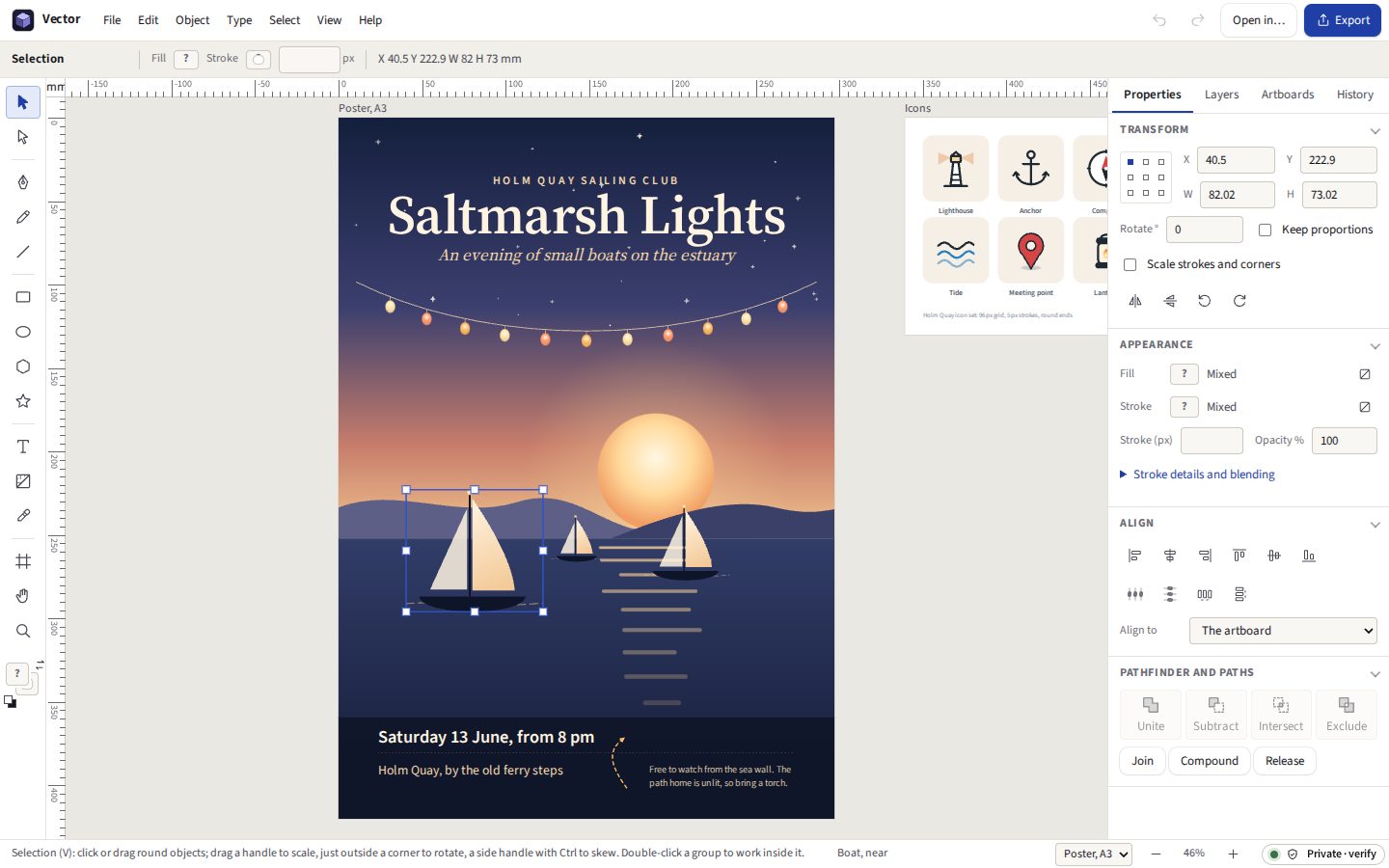
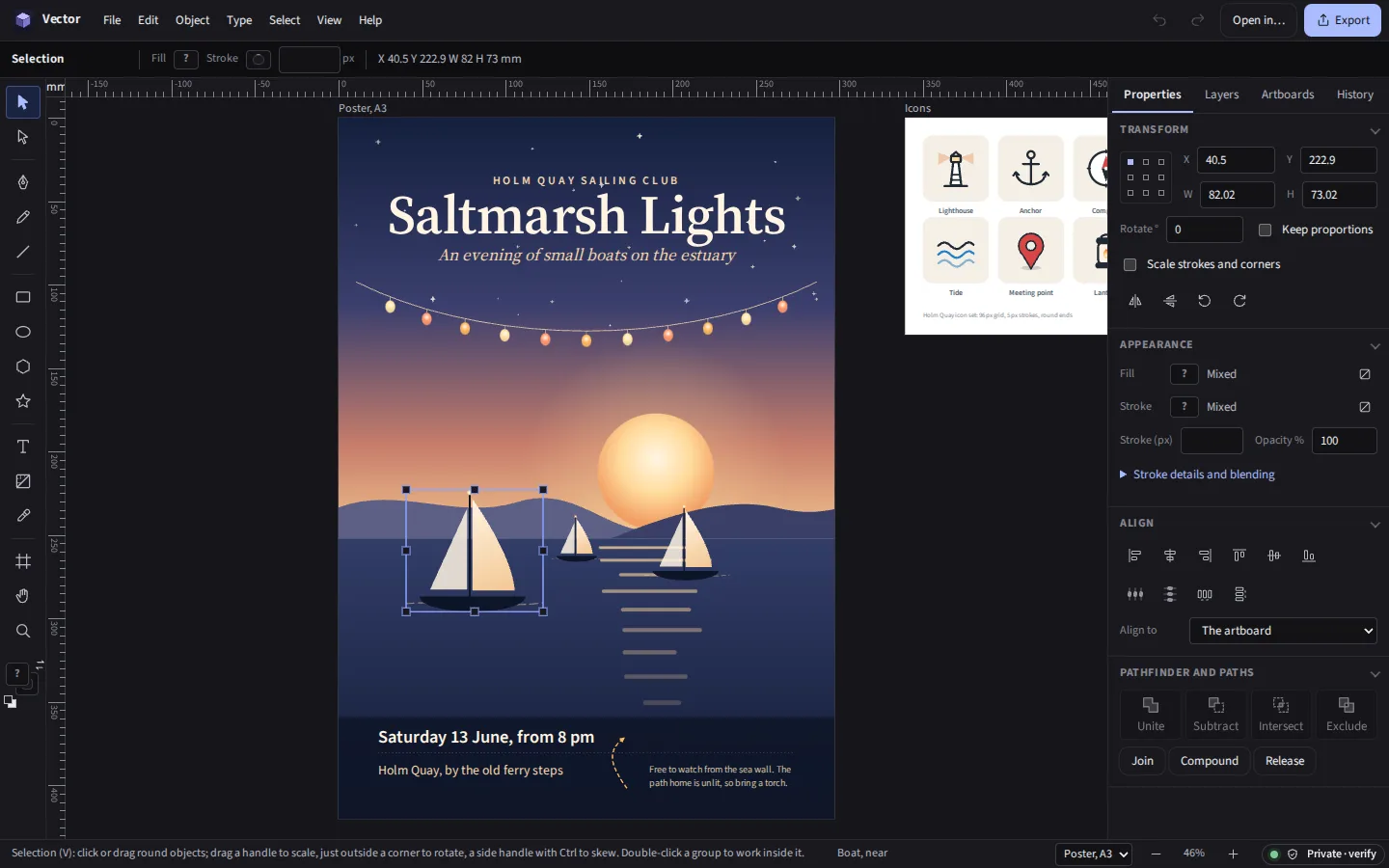
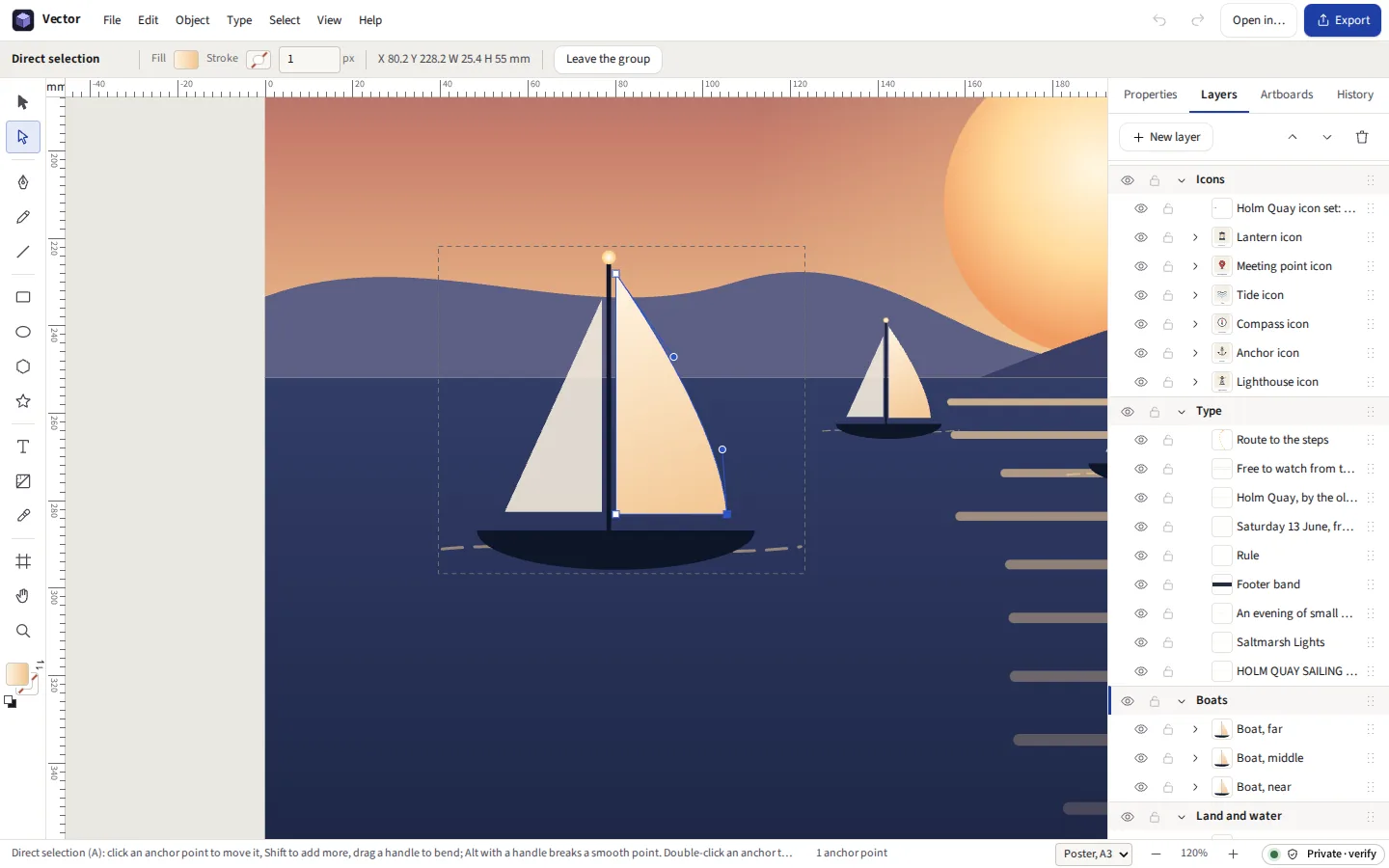
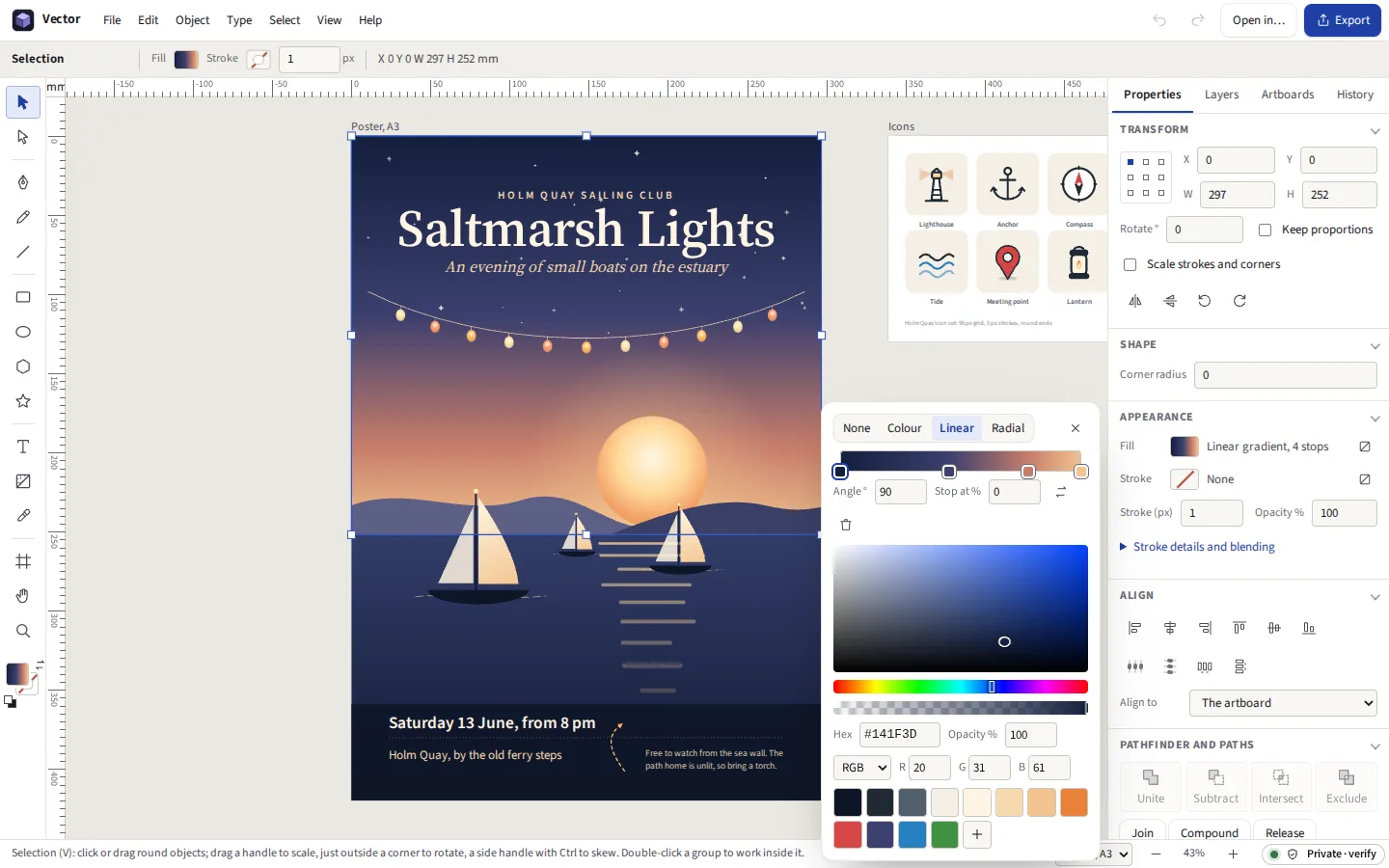
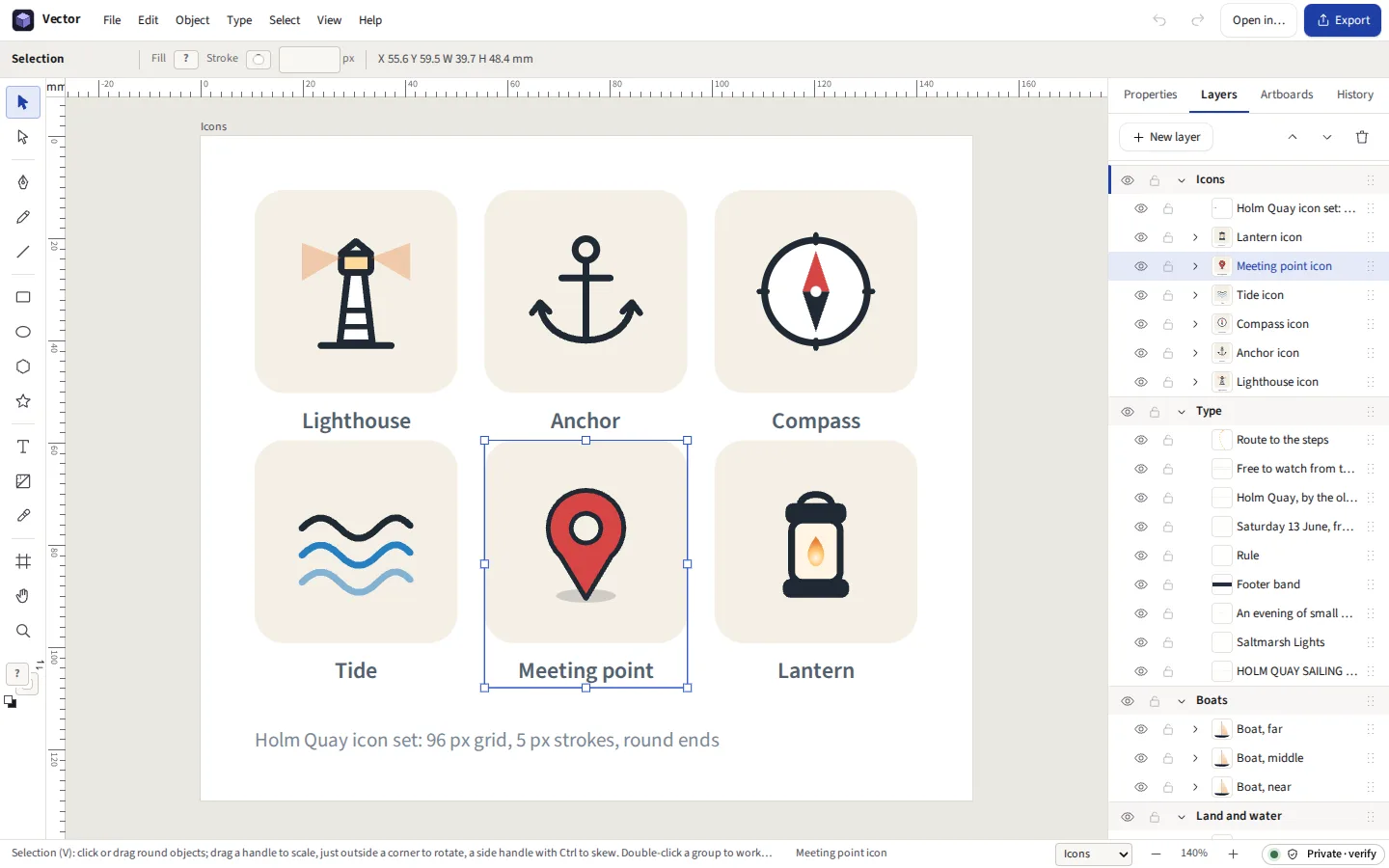
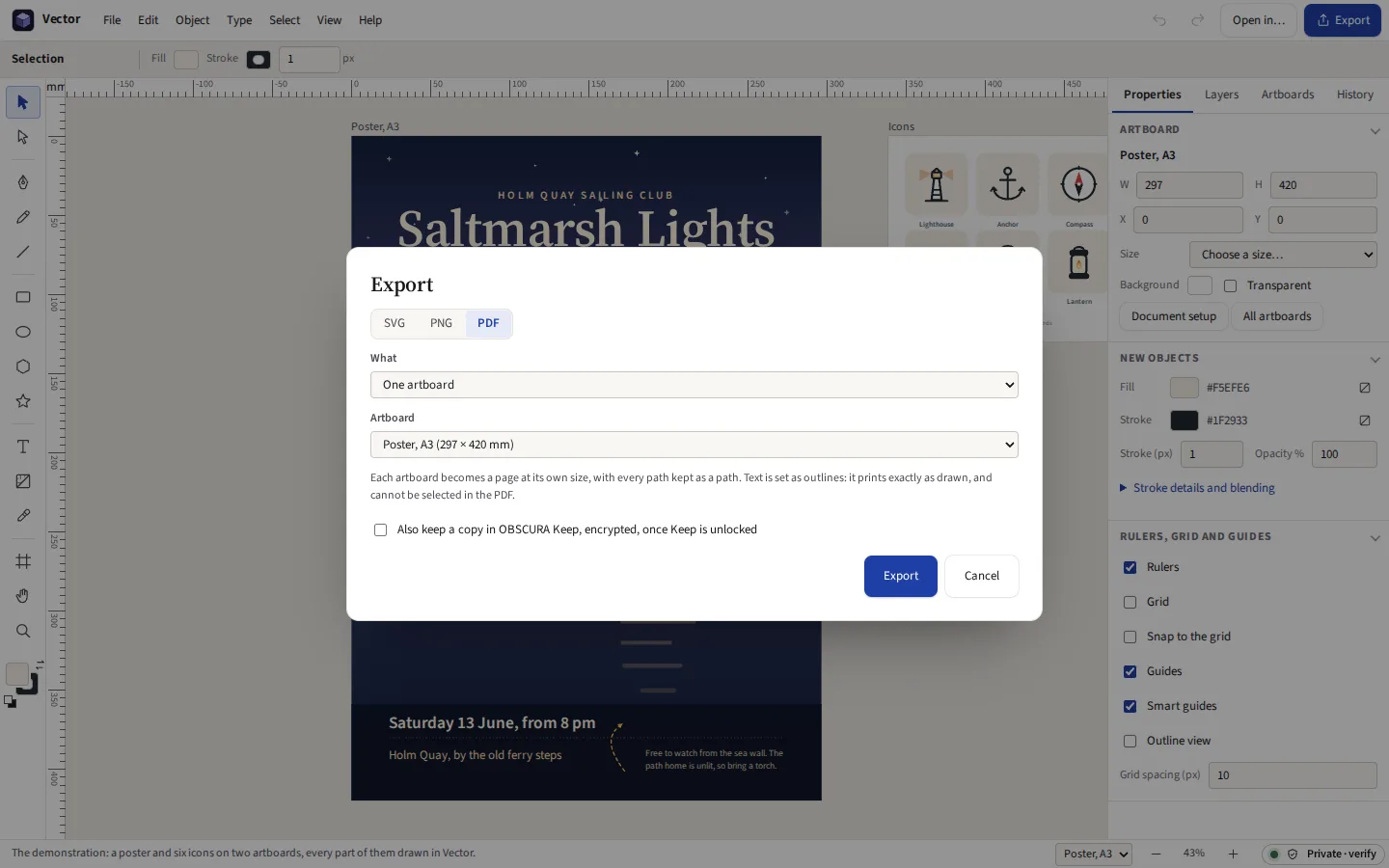
Taken from Vector itself, with the demonstration it opens: a poster and a set of six icons for an invented harbour, drawn in Vector for these pages.




Everything it does
The pen, shapes, type, gradients, layers and artboards, with SVG, PDF and PNG out. Your drawings are kept on this device. Unite, subtract, intersect and exclude worked out on the curves; smart guides, rulers and a grid; the keys Illustrator uses; and SVG from Illustrator, Inkscape or Figma opened with what Vector cannot edit kept as it was.
Before you start: No mesh or freeform gradients, no perspective or 3D, and no EPS files. What else it does not do
Compared with Adobe Illustrator and Affinity Designer.
What it does
Drawing
The pen draws a corner with a click and a curve with a drag; click the first point to close the path, or an open end to carry it on. Over a selected path the pen adds a point on a segment and removes one on an anchor. The pencil draws freehand and fits the fewest curves that follow the line, keeping sharp turns as corners. The line tool keeps to 45° with Shift.
Editing paths
The direct selection tool moves anchors, handles and whole segments; dragging a curve bends it through the pointer. A smooth point’s handles stay in line; Alt breaks them. Double-click an anchor to switch it between smooth and corner. Join two open ends, close a path, make and release compound paths. Average (Ctrl Alt J) lines the anchors up level, upright or on one point, and can join two ends in the same step.
Cutting and rubbing out
The scissors (C) cut a path where you click; the knife cuts shapes along the line you drag, Alt for a straight cut; the eraser (Shift E) rubs out what it passes over, at the size, roundness and angle you set. All three work on the curves, so the pieces meet exactly. Simplify takes out anchors within a tolerance you see before you choose, keeping sharp corners.
Selecting and transforming
Drag a handle to scale, from just outside a corner to rotate, a side handle with Ctrl to skew; Shift keeps proportions and turns by 15°. Exact position, size and angle in the Properties panel, measured from any of nine reference points. Ctrl D straight after a move, scale or rotation does it again; after an Alt drag it makes another copy the same distance on. Transform each scales, turns and moves each object about its own point. Double-click a group to work inside it. Select, Same picks everything with the same fill, stroke, stroke weight, opacity, blending, appearance, symbol or text style.
Measuring and tidying
The measure tool gives the distance and the angle between two points, and how far across and down, and copies the distance. A number field takes a sum or another unit: 100 + 20, 50%, 10 mm. Clean up counts stray points, unpainted objects, empty text and groups, and the swatches, patterns and pictures nothing uses, and takes them away in one step.
Smart guides and snapping
As you draw or move, Vector shows where an edge, a centre or an anchor lines up with another and snaps to it. Rulers in millimetres, inches or pixels from the artboard’s corner, guides dragged out of them, and a grid to snap to.
Colour
A picker with hex, RGB, HSL and CMYK, opacity, the document’s own swatches, global colours that change everywhere they are used, and colour libraries. Linear and radial gradients with as many stops as you want, laid across an object by dragging with the gradient tool. Sixteen blending modes, as in Illustrator and CSS. One object can have several fills and strokes, each with its own paint, width, opacity and blending, as in Illustrator’s Appearance panel. Pattern swatches are made from any drawing, in a grid or laid like bricks, and edited in place. Recolour artwork lists every colour in the selection and changes them one by one, all together, into a harmony, or to the nearest swatches.
Pathfinder
Unite, Subtract, Intersect and Exclude cut the curves where they cross and keep the curves as curves, so a circle less a square is still made of arcs. Shared edges and touching corners come out clean. Minus Back, Divide, Trim, Merge and Crop work the same way, each piece keeping the fill it came from. Outline stroke turns a stroke into a shape, with its caps, joins, dashes and arrowheads, and Offset path grows or shrinks a shape by a distance, with mitred, round or bevelled corners. Each is checked on every run against shapes whose areas are known.
Layers and artboards
Layers to show, hide, lock, rename, reorder, and move objects between by dragging. Several artboards in one document, each with its own name, size and background, drawn and moved with the artboard tool, each exported on its own or all at once.
Symbols, masks and repeats
Make symbol (F8) turns a drawing into a symbol: its copies are instances that change when it does, each with its own colours or words if you like, and a copy can be detached. Repeat lays instances out in a grid, round a centre or as a mirror. Clipping masks (Ctrl 7) and opacity masks stay editable inside.
Effects and strokes
Drop and inner shadows, an outer glow and a blur, each switched on or off and changed later, drawn the same on the screen, in a PNG and in an SVG. Live corners round any path, polygon or star by dragging a corner’s handle. The width tool (Shift W) and the paintbrush (B) make strokes that swell and taper.
Shape builder, blends and trace
The shape builder (Shift M) joins the regions of overlapping shapes you drag across, or takes them away with Alt. Blend fills the steps between two shapes. Image trace turns a placed picture into filled paths, in black and white or in colour, on this computer.
Type
Point and area type in Vector’s own faces or any on your computer, type set along a path, and OpenType features such as small capitals, old-style and tabular figures and fractions, carried into the outlines. Select letters while typing to give them another face, size, weight or colour, along a path too. Change case to UPPER, lower, Title or Sentence case, and find and replace words through the whole document. In Chrome and Edge, once you allow it, the fonts on your computer are outlined and set in a PDF from their own files. In a PDF the words stay text, to select, search and copy, each letter drawn from the face’s own outline.
Plug-ins
Shape generators and exporters written in JavaScript, five of them included: a gear, a spirograph, a dot grid, G-code for a pen plotter and points as CSV. Each runs alone in a closed box that cannot reach the internet or anything kept on this device.
How it was drawn
File, Record how this was drawn, a document at a time, and every operation in the history, each undo and redo, each SVG pasted from another program and each picture placed, is kept on the device in an Authorship record. Save it as an .oauthor file to hand in with the drawing; anyone checks it free at /verify-authorship, which replays it as pictures. A drag is one operation, as it is in the history.
The keys you know
V, A, P, N, M, L, T, G and I pick the same tools as in Illustrator; Ctrl G groups, Ctrl ] brings forward, Ctrl Shift O turns text into outlines, and ? shows the rest.
An Illustrator alternative that runs in a browser
Vector works the way people who use Adobe Illustrator, Affinity Designer or Inkscape expect: the same tools on the same keys, artboards, layers, a Pathfinder, and SVG files that those programs open. It runs in a browser on Windows, macOS, Linux and ChromeOS, with nothing to install and no account, and your drawings are kept on your computer rather than on a company’s server.
It is not a copy of any of them, and it does less. The section at the foot of this page says what is missing.
Where your work is kept
In the browser’s private storage on your computer, saved a moment after every change, and as an .ovector file whenever you ask: a zip of the document as JSON, its pictures, and an SVG preview of the first artboard, so the file can be read without Vector. A logo for a client before it is announced, or a design under embargo, is never on a server that could leak it, and nobody can train a model on it. The page works offline once it has been opened.
Files
| Format | In | Out |
|---|---|---|
| Vector document (.ovector) | Yes | Yes |
| SVG | Paths, shapes, text, groups, gradients, pictures, <use> and CSS; anything else kept as it was | An artboard, every artboard, or the selection; minified, or with text as outlines |
| Illustrator (.ai) | Saved with PDF compatibility: paths, shapes, type, gradients, pictures, clipping masks and layers | No |
| No | One page an artboard, paths as paths, text as text you can select, or as outlines | |
| PNG | Placed as a picture | At 1×, 2×, 3× or any number of dots per inch, transparent if you like, up to 32,768 pixels a side |
| JPEG, WebP | Placed as a picture, or traced into paths | At any scale, an artboard, the selection or each selected object, at 2× and 3× as well if you like |
| GIF | Placed as a picture | No |
What it cannot do yet
Said now, so that nobody pays to find out.
- No art or pattern brushes, mesh gradients, perspective or 3D. The paintbrush draws strokes that taper, not brushes that repeat a drawing along a path; there is no blob brush, no freeform or mesh gradient, no perspective grid and no 3D.
- Effects are a short list. Drop and inner shadows, an outer glow and a blur. A PDF has no effects, so an object with one, and an opacity mask, is placed in a PDF as a picture at 300 dots per inch.
- No EPS files. Vector opens SVG, its own files, and Illustrator files saved with PDF compatibility, which Illustrator does unless it is turned off; it reads the drawing, not Illustrator’s own editing data, so symbols, effects and brushes in an .ai come in as what they draw.
- No columns or threaded text. A text object can mix faces, sizes, weights and colours, but area type does not flow from one box into the next. Faces installed on your computer are outlined, and set in a PDF from their own files, only in Chrome and Edge once you allow it; elsewhere a web page cannot read their files, so they cannot be outlined and a PDF sets them in one of Vector’s own faces.
- No effects in a PDF’s pattern swatches. A pattern’s paths and pictures go into a PDF’s pattern; an effect, or a part kept from an SVG file, inside its tile is left out there, though on the screen, in an SVG and in a PNG it is there.
- No print colour management. CMYK figures are worked out from RGB with no colour profile, and PDFs are RGB. For a press that needs CMYK with a profile, convert the PDF in software that has one.
- Pathfinder works on fills. A stroke takes part once Outline stroke has made it a shape, and text once it is outlines; an object’s extra fills and strokes once Expand appearance has made them paths. There is no Outline pathfinder, which keeps only the edges.
- One person at a time. A document is on one computer. To work on it elsewhere, save it as a file and open it there. Clearing the site’s data in the browser deletes what is kept there, so save a copy as a file now and then.