Opening Sound…
Tracks

Audio editing and podcast production.
This browser’s Pro key was not accepted: the subscription behind it has ended. Renew or subscribe below.
Sound onlyUS$2 a month, 7 days free EverythingUS$5 a month, 7 days free Sign in
US$2 a month or US$19 a year for Sound, or US$5 a month or US$48 a year for everything. 7 days free. Stripe takes a card, and nothing is charged if you cancel before they end.
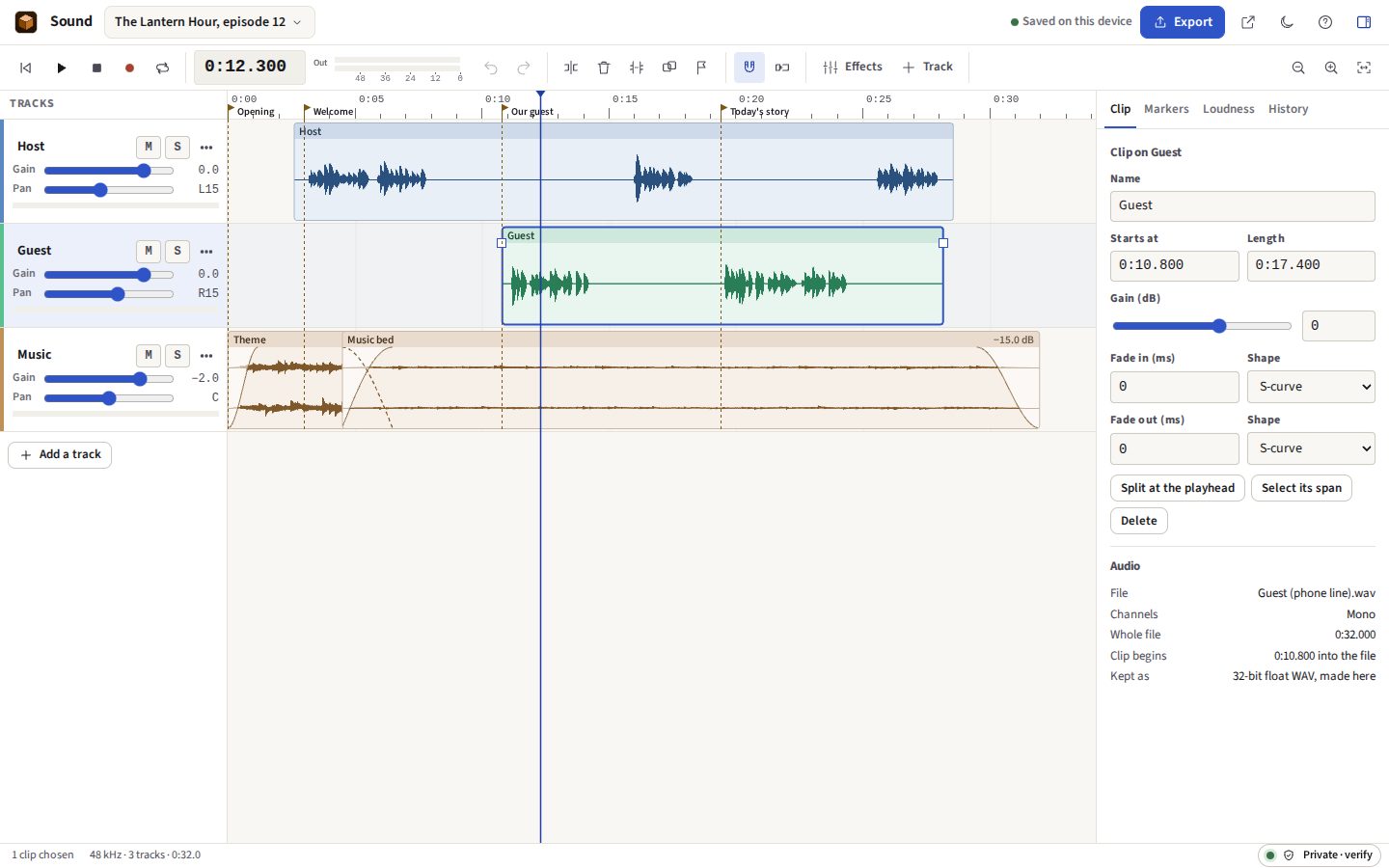
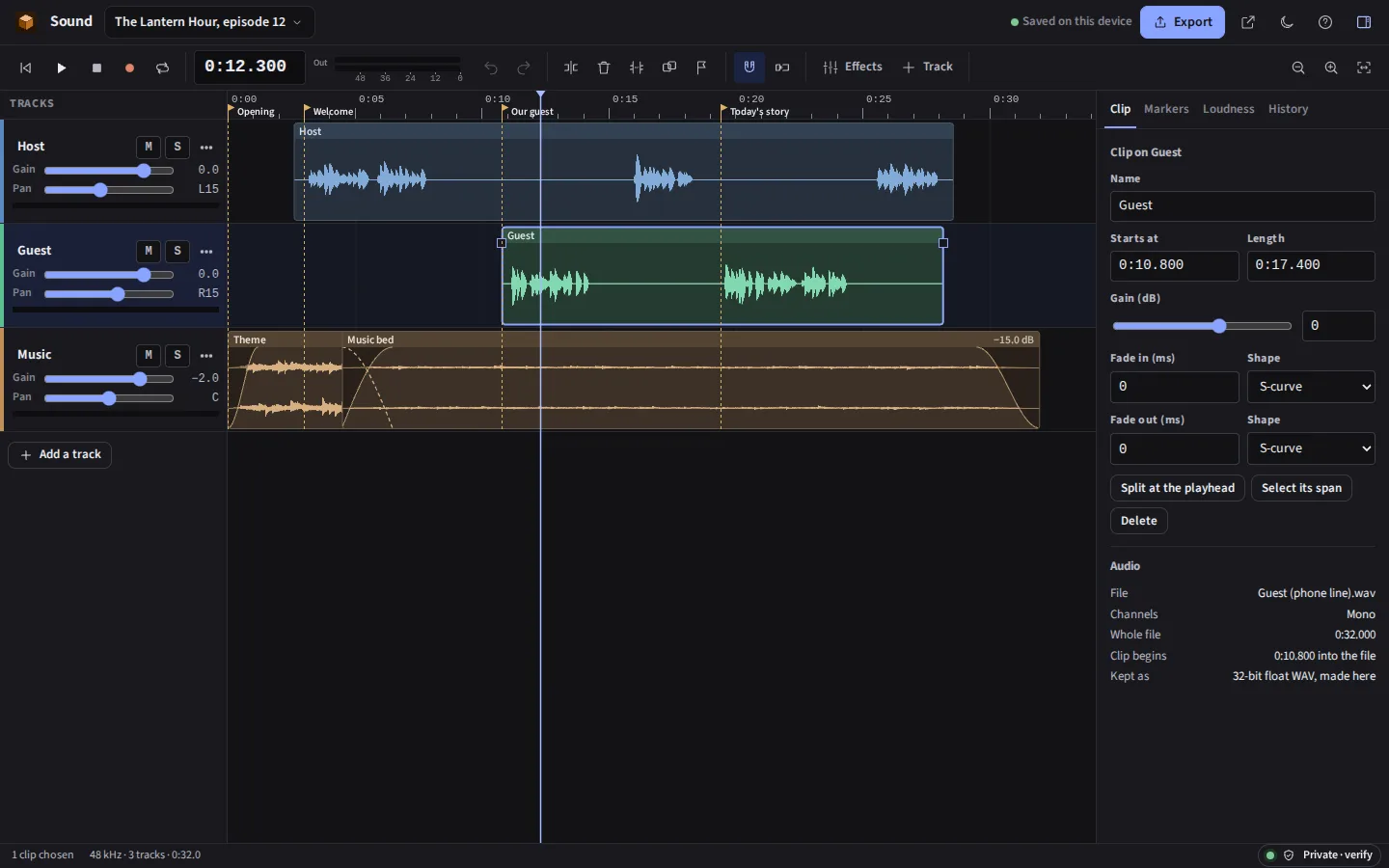
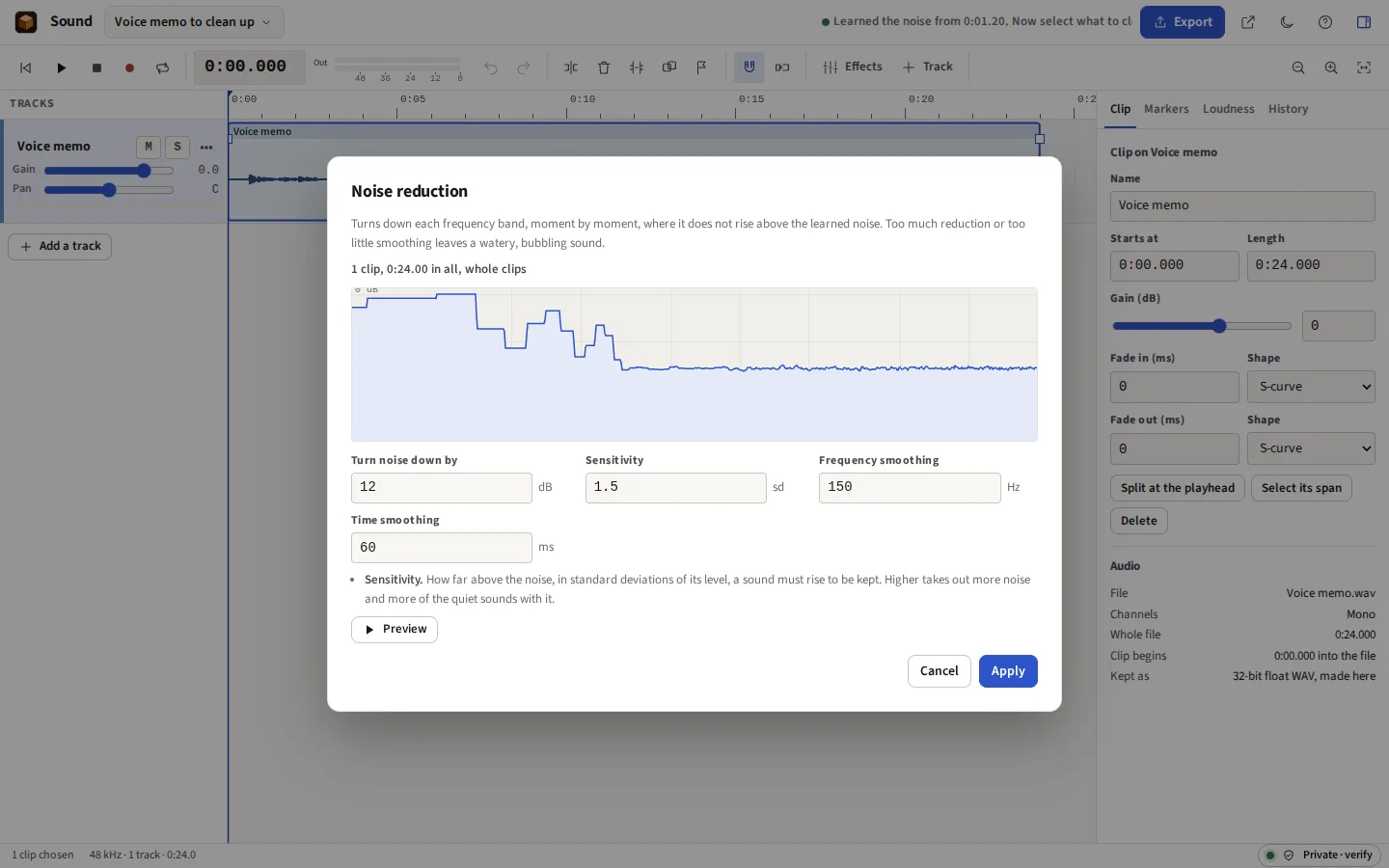
Taken from Sound itself, with the two samples it opens: the start of an invented podcast and a voice memo to clean up. The voices in them are synthesised from pitch and vowel shapes, so they have the rhythm of talk and no words; nobody’s voice was recorded.


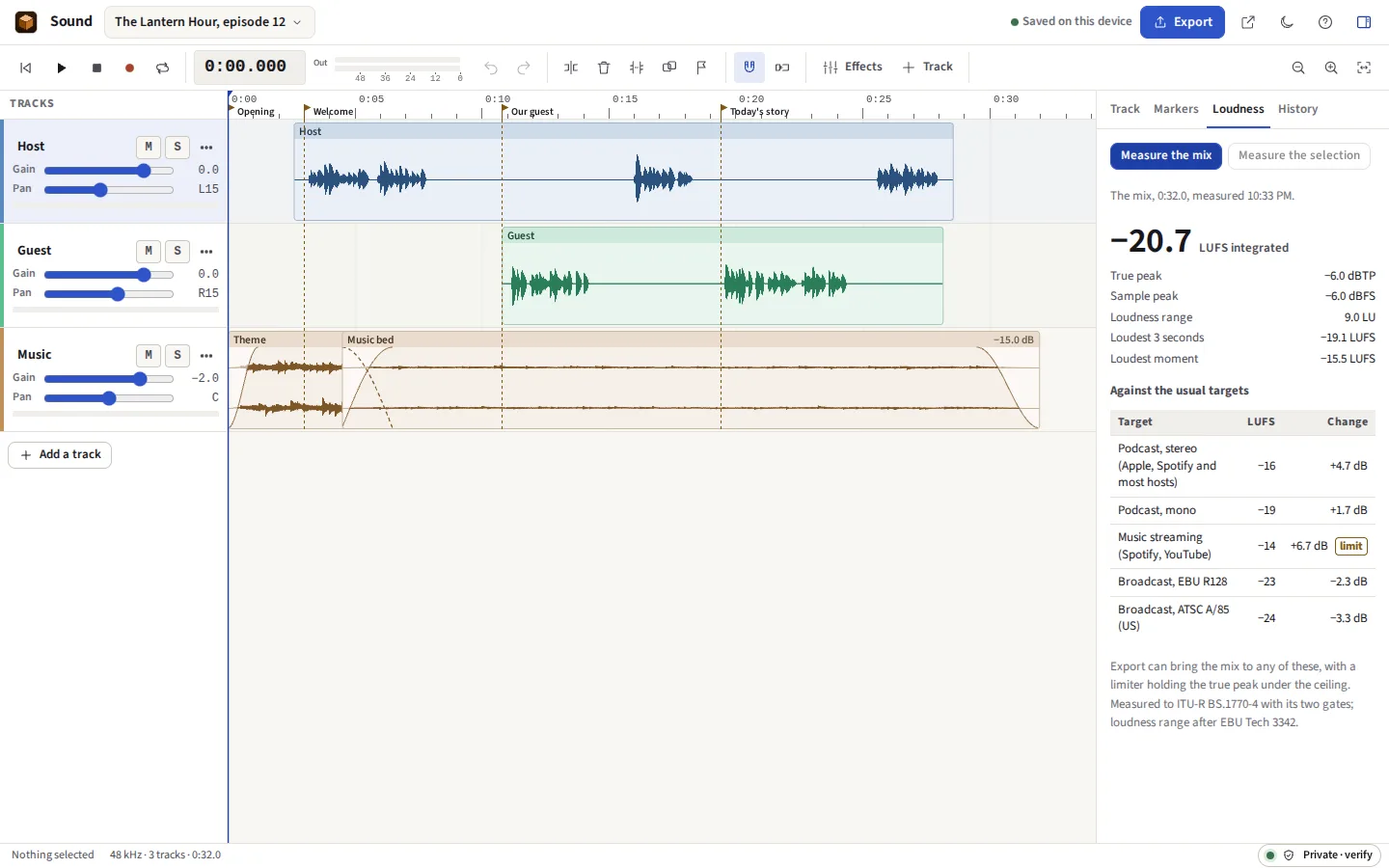

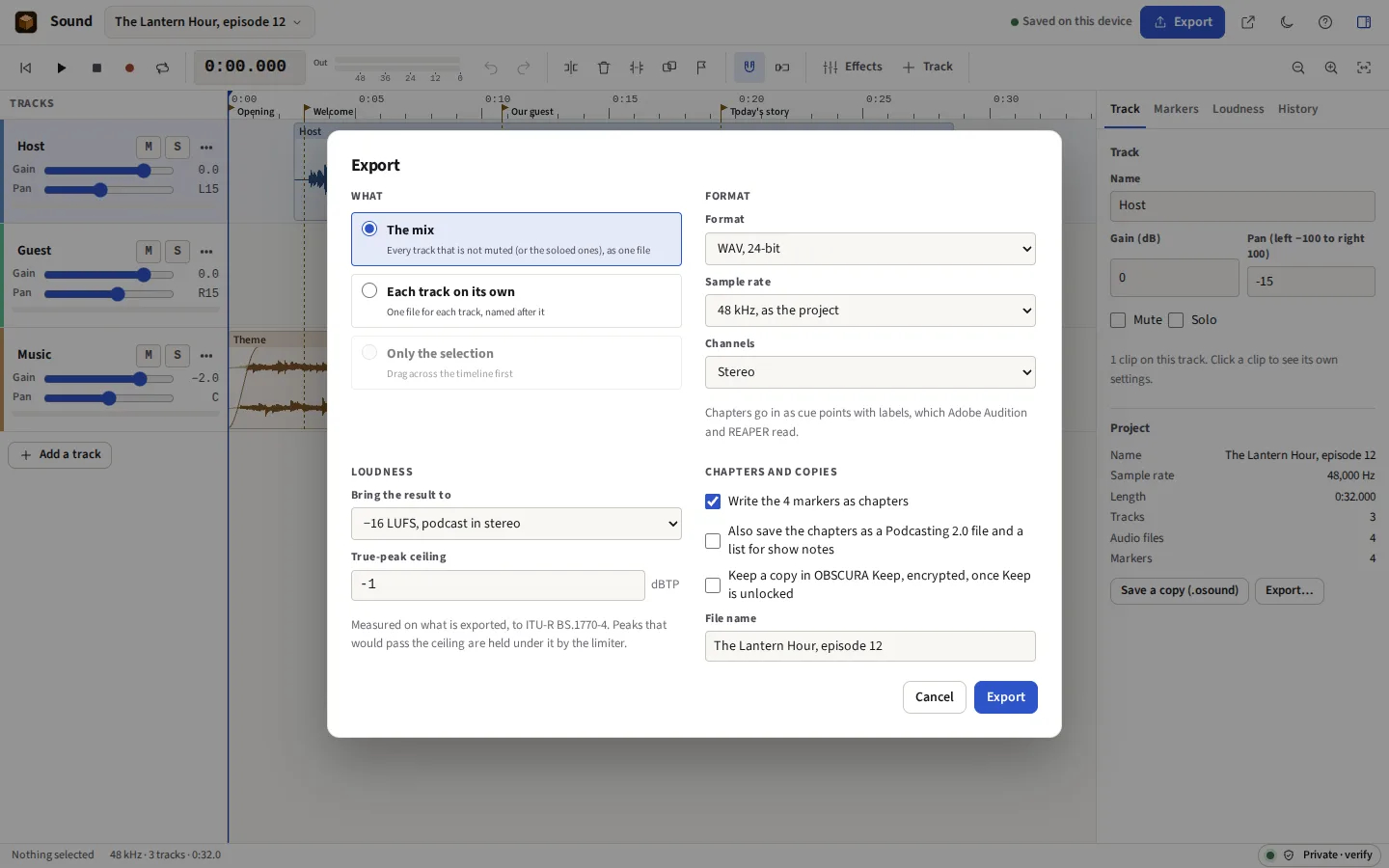

A multitrack editor for podcasts, voice-overs and music: record, cut, clean up and export. Your recordings are never uploaded. Noise reduction from a profile of the room’s own noise, EQ, a compressor and a limiter, long silences shortened, and loudness measured to ITU-R BS.1770 and set to −16 LUFS for a podcast.
Before you start: No VST or Audio Unit plug-ins, and no speech model: a browser cannot load the one, and a transcript comes from SCRIBE or a file, not from Sound. What else it does not do
Compared with Audacity and Adobe Audition.
Tracks one above another, each with its name, gain, pan, mute, solo and a level meter. Clips are drawn with their waveforms at any zoom, from the whole programme down to single samples, and show their fades as they will sound and any sample that clips; a track can be shown as a spectrogram instead. Markers and regions sit along the ruler; a stretch of it can be looped while you work on it. The ruler counts minutes and seconds, or bars and beats at the project’s tempo. Drag the playhead’s handle to scrub, hearing the audio under it, and play at half to twice the speed, as a tape does or with the pitch kept.
X shows a channel strip for every track: its inserts, its sends, where it plays to, its VCA, its pan, and its fader beside a stereo meter that holds its peak. Tracks can be routed into a bus as a group, or sent to one before or after their faders, so one reverb serves every voice; a bus has its own effects and fader. A VCA moves the tracks on it together. The mix’s strip has a true-peak meter, a phase correlation meter and a vectorscope. Every route and send is in the export, worked out by the same arithmetic.
A track’s volume and pan can change over time: click its line to add a point, drag a point to move it, or type the points in the inspector. A clip can have a volume envelope of its own, which moves with it and stays on the same sound when it is trimmed or split. What is drawn is what is heard, and what is exported.
Bring in a transcript (the JSON the free SCRIBE tool saves with each word timed, or an SRT, WebVTT or Whisper file) and its words sit in the Words tab. Choose words and the audio they were said in is selected; Delete cuts it from every track and closes up, and Cut fillers takes every um and uh out at once. Captions saved as SRT or WebVTT follow the edit.
A label track holds points and stretches with words on them, as Audacity’s does: typed, dragged, moved by a ripple delete, and read and written as Audacity’s label file. Label Sounds puts a label across each sound between the silences; Split at silences cuts a clip there, and can take the silences out.
S splits at the playhead, Delete takes out a clip or a selected stretch, and with ripple on, what follows closes up. Clips are dragged, trimmed from either end, copied and pasted, and snap to each other’s edges, the markers, the playhead and the grid. Overlapping clips are crossfaded. Every position is a whole sample, so nothing drifts.
Choose Record and the microphone goes into a new track, starting at the playhead, while the other tracks play. A meter shows the level coming in; a metronome and a count-in of a bar or two are there for music, and the microphone can be heard as it records, straight or through the track’s own effects. Sound asks the browser to turn off its echo cancellation, noise suppression and automatic gain, which are made for calls and spoil a recording.
Punch in and out on the selection: Record plays from a pre-roll before it and stops by itself after it, and the new take replaces exactly that stretch, crossfaded at each end, with what was there kept as a take of its own. With Loop on, each pass round the selection is a take. The takes sit in lanes under their track; click one, or sweep across part of it, and that is what plays.
Gain, normalise to a peak, fades, silence, reverse, change speed, change tempo and pitch apart, an equaliser, high-pass and low-pass filters, a compressor, a limiter, a noise gate, a de-esser, reverb, delay, chorus, flanger, phaser, noise reduction, click removal, a DeClipper that draws peaks cut flat again, hum removal at 50 or 60 Hz and its harmonics, a spectral cut that takes one band of frequencies out, shortening silences, room tone laid in the gaps between clips, and loudness normalisation. Each works on the selected stretch of a track or on the chosen clips, makes new audio and leaves the original for Undo. Music can be ducked under a voice, written as volume automation you can change. Tones, noise, sweeps, silence and a click track can be generated.
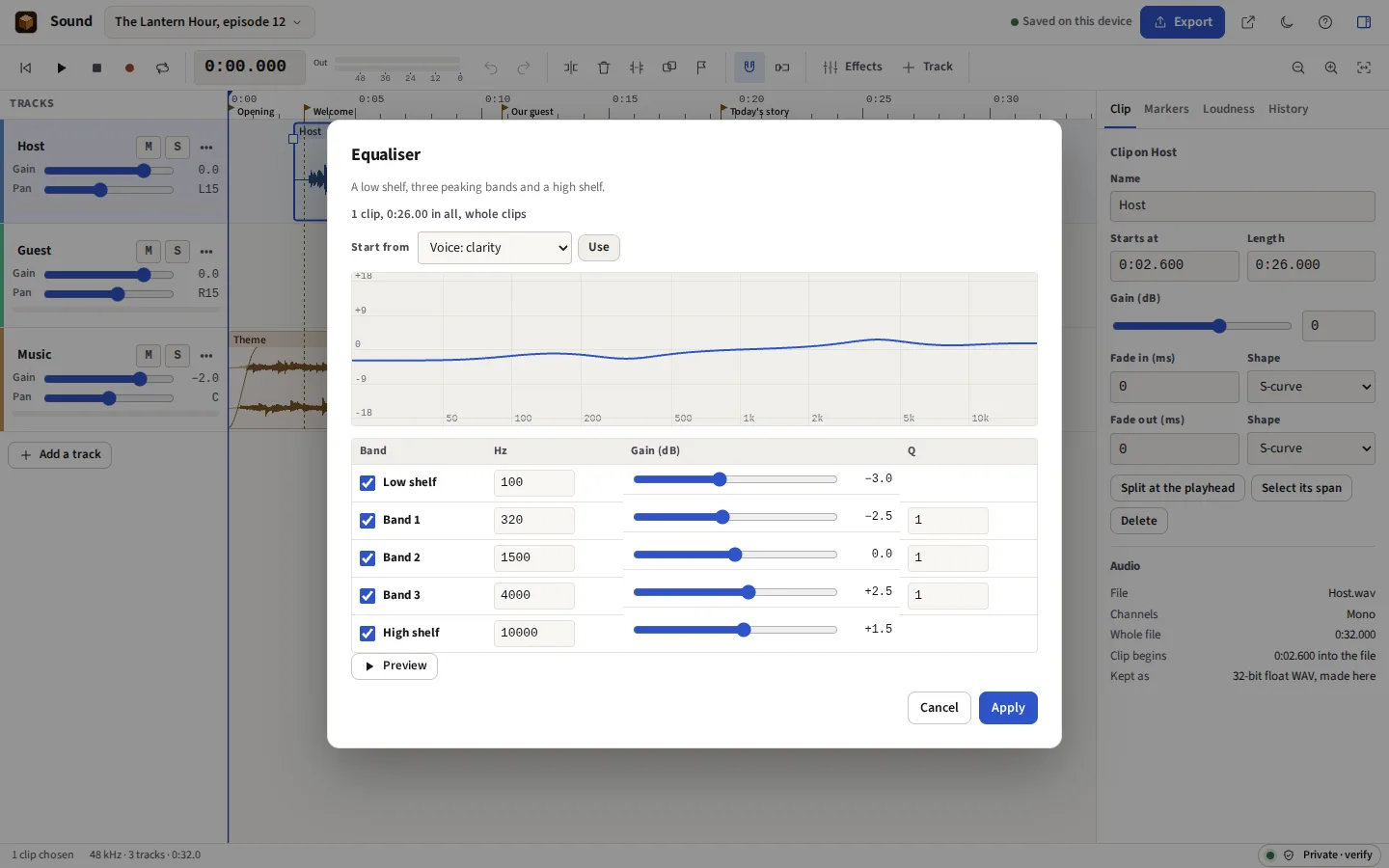
Each track has a chain of effects, and the mix one of its own: an equaliser drawn as a curve you drag, dynamics, reverb, delay and modulation, each with its knobs and a switch to bypass it. They are heard as you turn them and written into every export, reverb tails included. A chain can be saved as a preset and put on any track, and a project’s tracks saved as a template to start the next one from.
An effect can be added from a JavaScript file. It runs in the browser’s audio thread, where there is no network and no page, and sees only the samples it is given; Sound draws its knobs from what it declares. A bitcrusher, tape saturation and a stereo widener come as examples.
With sealing on, each second of a recording is hashed as it comes in and chained to the one before, and the recording is signed by your browser’s own key when it stops. It is kept as it was recorded, whatever is done to the take after, and anybody can check it, with its record, free at /verify.
On a track shown as a spectrogram, drag a box of time and frequency over a clip, or a lasso round any shape with Alt. Heal draws each frequency inside it across from the sound just before and just after, which takes out a click, a cough or a squeak in that band; Turn down and Remove lower it. Only what is inside the selection changes.
Interview clean-up, for a recording with a track for each speaker: each track trimmed to where its speaker speaks, judged against that speaker’s own voice and against the other microphones, with the gaps filled by the room’s own tone; each speaker brought to one loudness of speech, and their level evened out as they talk if you ask; and the pauses where nobody speaks shortened on every track at once. Show notes save the title, a description and the markers as timestamps, as Markdown, HTML or text.
Select a second or two where nobody speaks and choose Learn the noise: Sound measures the level of every frequency band in it, and how much each varies. Noise reduction then turns down each band of the recording, moment by moment, wherever it does not rise above that profile, by as much as you choose. It is classical signal processing, a short-time Fourier transform and a gate on each band; there is no model, and nothing leaves the device.
Integrated loudness is measured as ITU-R BS.1770-4 sets out: K-weighting, 400 ms blocks every 100 ms, an absolute gate at −70 LUFS and a relative gate 10 LU below. Sound’s measurement is checked against the EBU Tech 3341 test signals and against a second implementation, to within 0.1 LU. True peak is read from the signal at four times its rate, and loudness range after EBU Tech 3342. Momentary and short-term loudness are shown beside the output meter as it plays. Frequency analysis plots the mean level of each frequency in the mix or the selection.
The mix, each track as its own file, each region as its own file, or only the selected stretch, as WAV or FLAC at 16 or 24 bits (or WAV at 32-bit float), or MP3 at 32 to 320 kbit/s, at 44.1, 48 or 96 kHz or another rate. Loudness can be set on the way out, with a limiter holding the true peak under a ceiling, and a file made for each platform ticked at the loudness it asks for. Markers become chapters: cue points in a WAV, chapter comments in FLAC and Ogg Opus, ID3 chapters in MP3, a chapter list in M4A, and a Podcasting 2.0 chapters file. Presets set it up for a podcast, video, broadcast, a CD or an archive, and your own settings can be kept as presets.
Every shortcut can be changed by pressing the keys for it, and Audacity’s keys can be chosen as a set, so Ctrl I splits and Ctrl M adds a label as they do there.
A folder of recordings processed in one go: silence trimmed, rumble taken out, the podcast clean-up or a track’s effect chain, mono, a peak or a loudness, fades, then written as WAV, FLAC, Opus or AAC, in one .zip with each file’s loudness before and after.
A project is saved in the browser as you work, with its audio, and opens where you left it. Save a copy as one .osound file to move it to another computer or keep it safe: a zip of the project as JSON and the audio as the files it came in as, so an MP3 stays an MP3.
Sound works the way people who edit in Audacity, Adobe Audition or a podcast editor expect: tracks and clips on a timeline, a selection to work on, effects that are applied and undone, and an export at the loudness a podcast directory asks for. It runs in a browser on Windows, macOS, Linux and ChromeOS, with nothing to install, and it works offline once it has been opened.
It is not a copy of any of them, and it is not a studio: the sections below say what it does not do.
On your computer, in the browser’s private storage, and nowhere else. The project is saved there as you work; save it as an .osound file whenever you want a copy of your own. No server receives your audio, so an unreleased episode or an interview given in confidence cannot leak from one, and nobody can use it to train a model.
| Format | In | Out |
|---|---|---|
| Sound project (.osound) | Yes | Yes |
| WAV | 8, 16, 24 and 32-bit, and 32 and 64-bit float, with its markers | 16 and 24-bit, and 32-bit float, with the markers as cue points |
| MP3 | Yes | 32 to 320 kbit/s, made on this device by LAME, with the markers as ID3 chapters |
| FLAC | Yes | 16 and 24-bit, lossless, with the markers as chapters |
| AAC (.m4a) | Where the browser can decode AAC | Where the browser can encode AAC, with chapters |
| Ogg Vorbis and Opus | Where the browser can decode them | Opus in Ogg, where the browser can encode Opus, with chapters |
| Chapters | From a WAV’s cue points | Podcasting 2.0 JSON, a plain list, Audacity labels, show notes, and inside WAV, FLAC, Ogg, MP3 and M4A |
Opening a file is done by the browser’s own decoder, so what opens depends on the browser. WAV, MP3 and FLAC open in every current one. Ogg Vorbis and Opus open in Chrome, Edge and Firefox; in Safari it depends on the version. AAC opens in Safari, and in Chrome and Edge on Windows, macOS and Android; some Linux builds of Chromium and Firefox have no AAC decoder. Opus and AAC export use the encoder built into the browser, where it has one: Chrome and Edge have Opus everywhere and AAC on Windows and macOS. When a browser cannot do something, Sound says so at the moment you ask, and WAV always works.
Said now, so that nobody pays to find out.
Opening Sound…