How to use OBSCURA OS
The site itself: the front door, the console down the left of every page, opening things in tabs, searching, trying a paid application first, finding a tool, Settings and Pro.
Go to the front doorTo do the same, start on the front door. Nothing in the film needs an account, and nothing is bought.
The steps
Press a step to play the film from there.
The front door
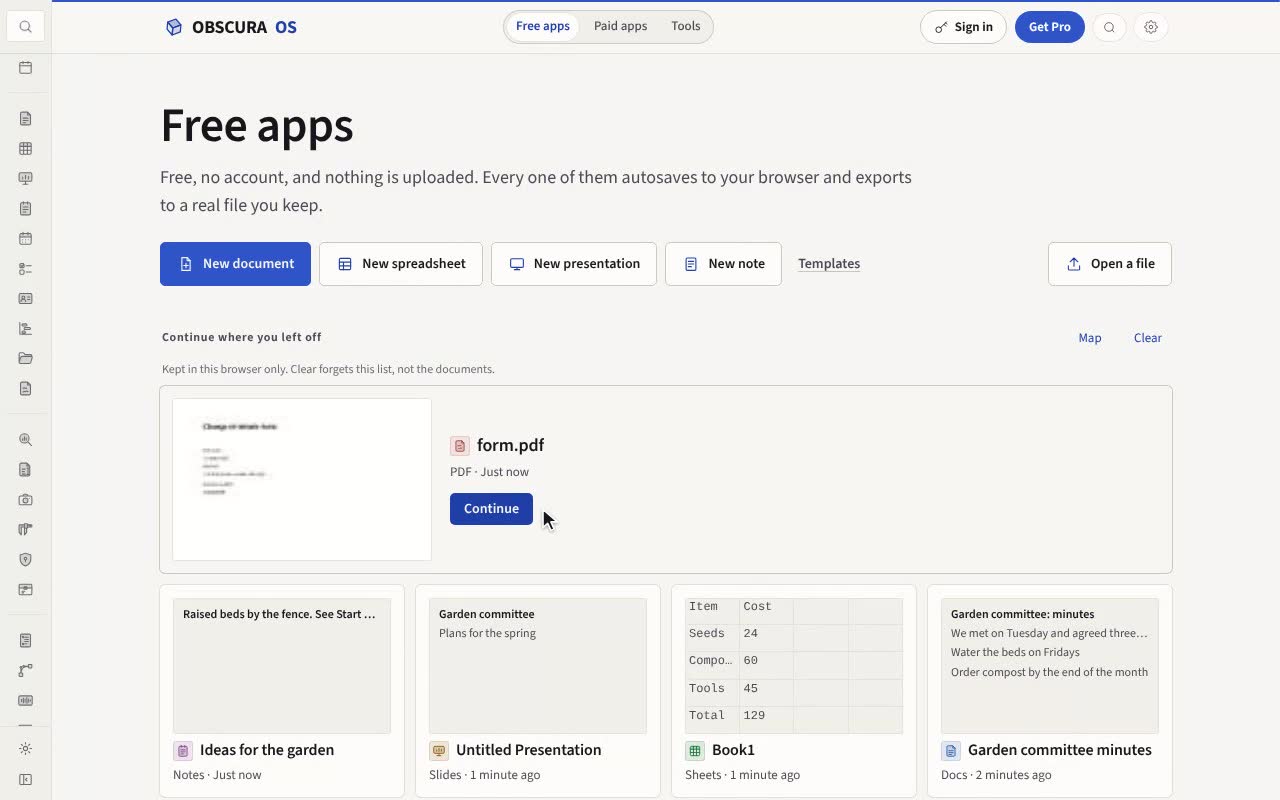
- 0:00 This is the front door. Everything here runs in your browser, and your files never leave your device.
- 0:07 The six main applications are here. Each can be tried first, with its example.
- 0:14 Under them is the free Workspace: documents, spreadsheets, notes and more, with no account.
- 0:20 Down the left is the console, on every page of the site. Everything is in it.
Open something
- 0:27 Press a row of the console. It opens here, on the right, in a tab of its own.
- 0:35 Open another, and each keeps its tab. Today, the first tab, brings the front door back.
Search
- 0:42 Not sure where something is? Type the job into Search, at the top of the console.
- 0:49 The answer comes first: the task, and where it is done. Press Enter, or click it.
Paid apps
- 0:56 Try the example opens an application with its example, read-only, with no key.
- 1:02 Eleven more applications come with Pro. They are under More paid apps, in the console.
Tools
- 1:09 Tools is the single tools, one job each, in five lists. Checking a file with any of them is free.
- 1:17 Each tool says what it does. Press one to open it.
Settings and Pro
- 1:23 Settings is at the foot of the console: light or dark, colours, text size and backups.
- 1:30 The button at the top folds the console away, and brings it back.
- 1:36 Get Pro shows the two plans: one application, or everything.
- 1:41 The console is here too, as on every page. Today, at its top, is the way home.
More
More like this, and every tutorial: